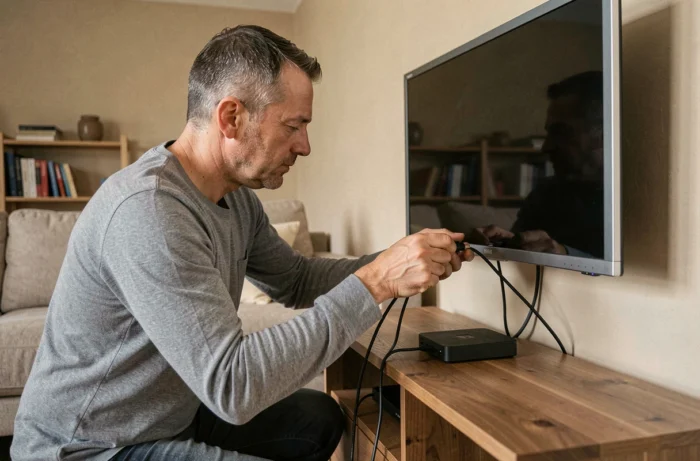
Connecting an IPTV box to a television that has only ever seen an antenna is the most common starting situation. However, connecting IPTV to a TV requires little equipment, provided you know which port to use, what type of network connection to prioritize, and how to avoid slowdowns that turn an HD stream into a mosaic of pixels.
HDMI Port, Wired Network, or Wi-Fi: What Determines the Quality of the IPTV Stream
Before choosing a box or an application, we look at the back of the television. A free HDMI port is the minimum required to connect an external device (Fire TV Stick, Android box, Apple TV). If the TV only has a composite input (yellow-white-red connectors), the resolution will be limited to SD, making HD IPTV unusable on that screen.
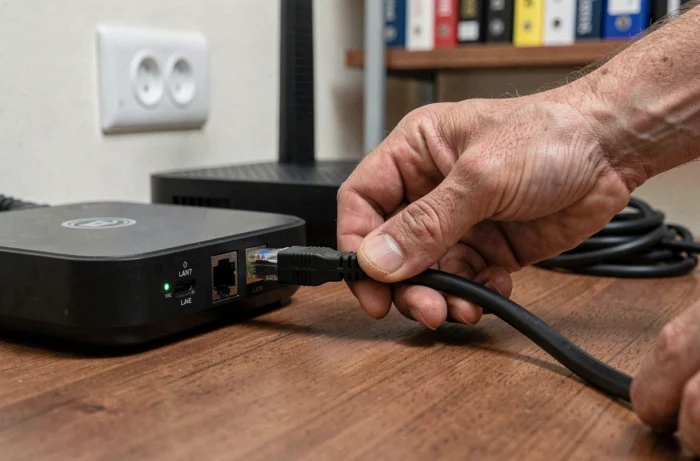
The network is as important as the screen. A direct Ethernet cable to the box eliminates most stutters. Wi-Fi works, but feedback on this point varies depending on the distance to the router, the thickness of the walls, and the number of devices connected simultaneously. When recurring micro-cuts are noticed, a powerline adapter (CPL) connected between the Internet box and the IPTV box often provides a more stable compromise than Wi-Fi alone.
To delve into each step of the physical and software connection, a dedicated guide on installing and connecting IPTV to TV details the procedures based on the type of television.
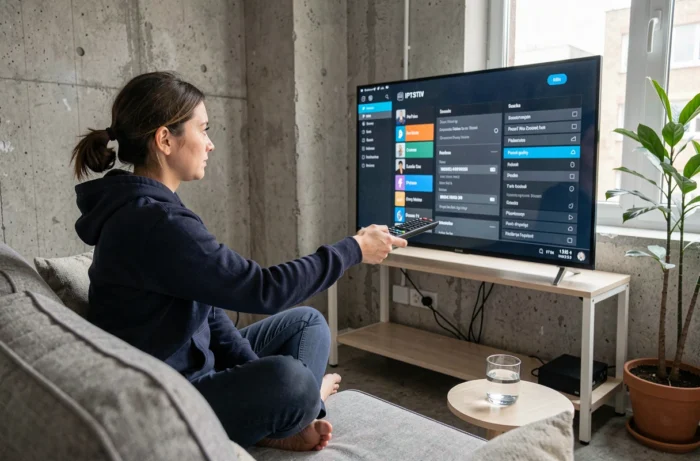
Configuring the IPTV Application: URL, Codes, and Playlist Format
Once the box is connected and linked to the network, the next step is software-related. An IPTV player application is installed from the device’s store (Google Play Store on Android TV, Amazon Appstore on Fire Stick). Common names include IPTV Smarters, TiviMate, GSE Smart IPTV.
The IPTV provider typically transmits three elements for the connection:
- A M3U playlist URL, which points to the list of available channels. It is pasted into the dedicated field of the application.
- A username/password pair (sometimes referred to as “Xtream codes”), used by applications compatible with the Xtream Codes API to load channels without an M3U file.
- An EPG link (electronic program guide), optional but useful for displaying the names of current and upcoming shows on each channel.
The most common mistake at this stage is copying the URL with an extra space at the beginning or end. The application then displays a blank screen or a “playlist not found” message. A simple check of the input field, character by character, is enough to resolve the issue.
Case of Samsung and LG Smart TVs without External Box
On recent Smart TVs, some IPTV applications are available directly in the integrated store (Smart IPTV, IPTV Smarters). The setup follows the same principle: the M3U URL or Xtream codes are entered in the application settings.
On Samsung Tizen and LG webOS TVs, the app catalog is more limited than on Android TV. If the desired application does not appear in the store, using an external box remains the most straightforward solution.
Internet Speed and Network Sizing for IPTV
A standard definition stream consumes little bandwidth. In HD, the requirements increase significantly, and in 4K, we enter a different category of speed. The hotel competitor Hotel-Care mentions useful orders of magnitude:
- SD: a few Mbps per stream
- HD: between 5 and 8 Mbps per stream
- 4K: over 25 Mbps per stream
These values apply to each simultaneous screen. At home, if two televisions are streaming IPTV in HD while a computer is downloading a large file, the total available bandwidth must cover the sum of all these uses. On a fiber connection, this question rarely arises. On an ADSL line or a fixed 4G network, the limit is quickly reached.
A often overlooked point: the quality of service (QoS) of the router. Activating video stream prioritization in the router settings, when this option exists, helps protect the IPTV stream even when the home network is busy.
Legal Framework and European Developments Around IPTV Streams
IPTV as a broadcasting technology is perfectly legal. What determines compliance is the source of the content. A subscription to a provider that holds broadcasting rights (telecom operator, official platform) poses no problem. A service that redistributes paid channels without authorization exposes the user to legal risks.
The European Union is working in 2026 on a coordinated crackdown against the piracy of live streams. A study by the European Parliament recommends near-instant blocking of illegal streams, especially during sporting events. In practical terms, this means that unauthorized services experience increasingly frequent and rapid interruptions, making their use unpredictable.
On the hardware side, Smart TV manufacturers are also tightening their policies. Samsung has recently banned applications that turned televisions into residential proxy nodes, sharing the user’s Internet connection without their knowledge. Checking the permissions requested by each application installed on the TV remains a basic precaution.
Connecting IPTV to a television takes only a few minutes once the equipment is gathered and the network is stabilized. The real variable that separates a smooth experience from a choppy stream remains the quality of the network connection between the box and the router. A few meters of Ethernet cable resolves most cases, and the rest is determined by the settings of the playback application.